Contents ~ Posts ~ Free Images ~ GIMP 2.8 Shortcuts ~ Studio Dalio Gallery
Showing posts with label GIMP. Show all posts

04 September 2020

How to Create Regular Polygons in GIMP

I have noticed over time that there have been continual searches for "gimp hexagon". I have no idea in which context anyone is searching for this concept, but it inspired me to write a simple tutorial on how to create regular polygons in GIMP. For this tutorial I have chosen to show how to create a hexagon.

A hexagon consists of six sides of equal length. You can think of the hexagon as being composed of six equilateral triangles. Since each angle in an equilateral triangle is 60 degrees, the angle between two adjacent sides of a hexagon is 120 degrees. Keep this in mind during the instructions below.

10 July 2014

A Painting Tutorial by Evelyne Schulz

Many months ago I discovered Evelyne Schulz on Twitter due to a GIMP-related post. I immediately loved her artwork and, after some correspondence, she graciously agreed to write a tutorial about how she creates her digital paintings in GIMP. What follows is what she wrote about how she created her Warrior painting, with editing and inclusion of a description of the Palette Editor by me.


Warrior


23 April 2014

Four Ways to Draw a Border Around a Selection in GIMP

I was recently asked for a quick way to draw a border three pixels wide around the inside edge of a rectangular selection on top of an in-progress graphic design. Two methods immediately came to mind and a third occurred to me later that afternoon. I discovered a fourth method while writing this article.


Method 1


The most obvious method to use is Select > Border [1], which opens the Border Selection dialog [2]. This dialog contains three adjustments.

Border Selection Dialog

04 February 2014

Alignment and Distribution of Graphic Elements in GIMP

When creating graphic or typographic designs or laying out printed matter such as brochures, leaflets, or newsletters, knowing how to use GIMP to organize and move graphic elements can be very handy. In this article I will explore GIMP's alignment and distribution functions by creating a simple graphic design of colored circles.


Final Dot Graphic

24 December 2013

GIMP's Layer Modes (Somewhat) Demystified – Part 4: A Pictorial Comparison

For a final comparison among the layer modes, I created several examples that visually show the effects of combining various layers.

Grayscale on Grayscale


First, I created a square non-dithered grayscale linear gradient lower layer, then made a copy and rotated it 90ΒΊ for the upper layer. I chose each layer mode to see the effect. Here's a visual representation of what occurs with each layer mode.

17 December 2013

GIMP's Layer Modes (Somewhat) Demystified – Part 3: Grain Extract to Value


In this article I discuss the following layer modes: Grain Extract, Grain Merge, Divide, Hue, Saturation, Color, and Value. I will use the same test images I used for Part 1 and Part 2.


Color Patterns on Color Blocks
Roses on Macaw
Roses on Macaw
Macaw
Macaw
Grayscale Gradient
Grayscale Gradient


For each of the test images, I changed the layer mode of the upper layer to each mode and saved the result. I've included these images in each section below as references. What follows are my observations and thoughts about how to use each layer mode. Feel free to copy any of these images to your desktop so you can load them into GIMP for a closer look.

The layer modes are presented in the order in which they appear in the Mode drop-down menu. Here's a full list with quick links.

Normal Multiply Grain Extract
Dissolve Burn Grain Merge
Lighten Only      Overlay Divide
Screen Soft Light Hue
Dodge Hard Light Saturation
Addition Difference Color
Darken Only Subtract Value


04 December 2013

GIMP's Layer Modes (Somewhat) Demystified – Part 2: Darken Only to Subtract


In this article I discuss the following layer modes: Darken only, Multiply, Burn, Overlay, Soft light, Hard light, Difference, and Subtract. I will use the same test images I used for Part 1.


Color Patterns on Color Blocks
Roses on Macaw
Roses on Macaw
Macaw
Macaw
Grayscale Gradient
Grayscale Gradient

For each of the test images, I changed the layer mode of the upper layer to each mode and saved the result. I've included these images in each section below as references. What follows are my observations and thoughts about how to use each layer mode. Feel free to copy any of these images to your desktop so you can load them into GIMP for a closer look.

The layer modes are presented in the order in which they appear in the Mode drop-down menu. Here's a full list with quick links.

Normal Multiply Grain Extract
Dissolve Burn Grain Merge
Lighten Only      Overlay Divide
Screen Soft Light Hue
Dodge Hard Light Saturation
Addition Difference Color
Darken Only Subtract Value


20 November 2013

GIMP's Layer Modes (Somewhat) Demystified – Part 1: Normal to Addition


A reader recently commented that he didn't understand why there are so many layer modes in GIMP and he wondered just what one is supposed to do with all of them. Since I wasn't able to help right off the bat, I decided to do some research and experiment. Figuring stuff out for yourself is fun and I find that it burns in the knowledge. So what follows is the process I went through to try and understand more about layer modes.

First, I created a 900 x 1200 canvas in GIMP divided into six sections: light red, dark red, light blue, dark blue, light green, dark green. I varied the intensities of the colors a bit to make it easier to notice possible differences. The HSV and RGB numbers in each large block indicate the actual color values. On top of each color I put a grayscale gradient with a block of black on the left and a block of white on the right. I merged all of the small color blocks onto a transparent layer to make a test pattern layer above the six-color background. I thought this example would be useful for artists to see how layer modes affect colors.


Color Patterns on Color Blocks


13 November 2013

GIMP Quickie No. 4 – Creating Color Pop on Midtone Grayscale


The following steps are for GIMP 2.8.

Step 1

  • Load image into GIMP and crop as desired.


Original Image of Orange Flowers
Original Image
Canon EOS 5D Mark III at f/4, 1/160 sec, ISO-100, 200 mm

11 October 2013

Question from the Audience – Sharpening a Selection

A Learning Experience


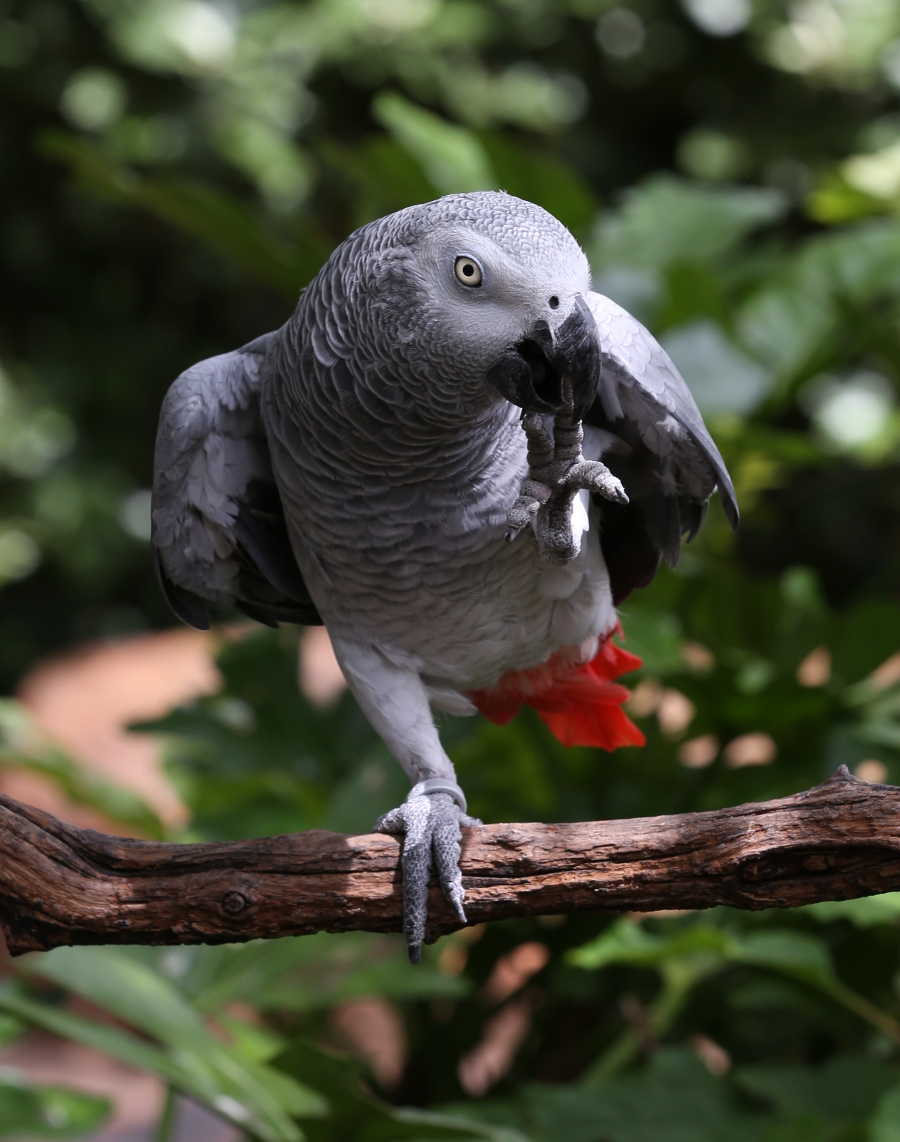
A reader asked me if it were possible to use the grain extract / grain merge sharpening technique on a selection. Taking the question literally and having never tried that before, I immediately opened GIMP and started experimenting. Let's go through the process of sharpening only the face of this African gray parrot and see what we learn.

African gray parrot
African gray parrot

03 October 2013

A Non-Destructive, Adjustable Method for Cutting Out an Image

The Black and White of Masking


In a previous tutorial I described a way to cut out irregular images using the Free Select tool. I used to use that technique frequently, but it's very time consuming, causes a lot of work for the left-mouse-button finger, and leaves a sharp edge unless either you remember to feather the selection before deleting the cutout area or you use the Blur or Smudge tool to soften the edge. It's also destructive to the image and, if you make a mistake, it's painful to fix it.

I have since switched over to using masks. Not only is a mask quicker and easier to use, it doesn't affect the original image, so recovering from mistakes is simple, and if you use a soft brush you automatically get blurred edges. You want blurred edges so that the cutout image blends smoothly into whatever it's in front of.

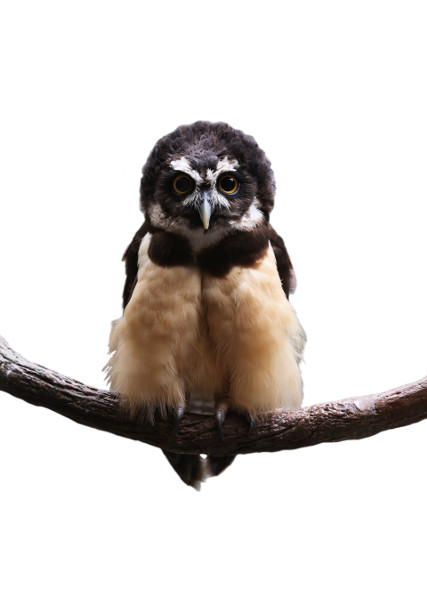
This tutorial describes how to create the following image using a mask to cut out the background.


Spectacled Owl with No Background
Let me give you my two hoots' worth.

25 September 2013

How to Create a Textured Background Using Color Functions and Bump Maps

In a previous tutorial, I described a method of creating a background using overlays of various artistic GIMP filter effects. In this tutorial, I'll describe a method of creating a textured background with a 3D look, similar to the one in the following image, using a photo of some gray stone and various functions from the Colors menu combined with Bump Mapping.


You Belong Typographic Design


16 September 2013

How to Create Weathered Text on Wood

Let's say you want to create the look of text painted on a wooden board and you want the text to look like it's been out in the weather for a long while. There are several methods you can use to distress text. You can find some of them on the web by searching for “GIMP text”, plus one of the following words: weathered, distressed, worn.

This tutorial describes how to create the following image using a photo of a gray board, some text, and a photo of a rusty metal texture that is processed and turned into a layer mask. You can download the two photos (Weathered Gray Wood 0099 and Rusty Metal 0817) from the Free Images page of my blog.


Bear Foot Cabins Sign

06 September 2013

How to Create Lightning Bolts with GIMP


GIMP is really useful for adding special effects to photos and drawings. In this article I'll describe a simple method for creating lightning bolts that can then be resized, reoriented, scaled, or otherwise processed to fit into an image.


14 August 2013

Behind the Scene – Creation of a Seascape

Back in the autumn of 2012 I had seen a design on Zazzle that I liked quite a lot. It was a limited-palette, multicolored, layered, southwest United States-style design. I got the urge to create something using a similar concept, so after letting my subconscious mull it over for a bit I woke up one morning with the idea of a seascape and quickly made a sketch.


Original Seascape Sketch


30 July 2013

GIMP Quickie No. 2 – Creatively Rescuing a Poor Photo

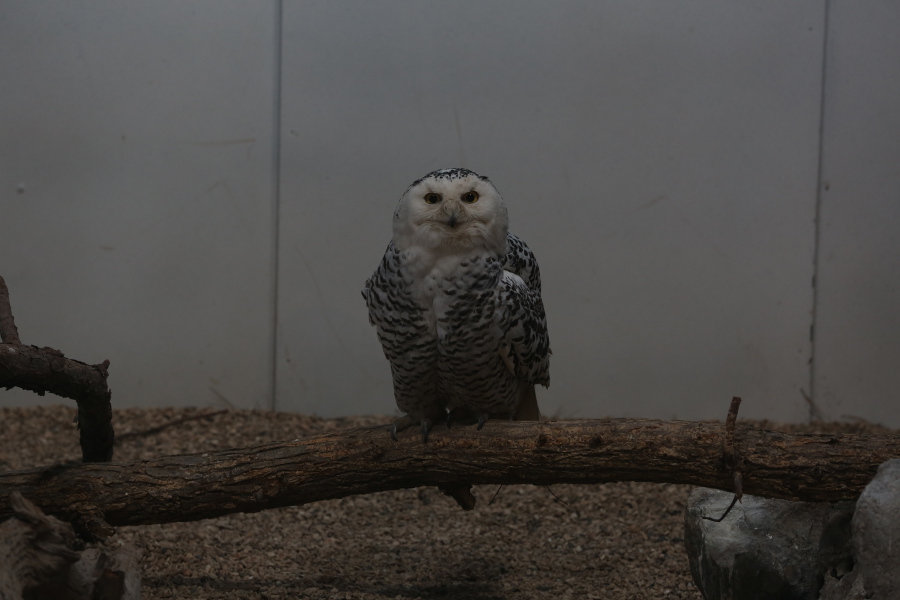
Original Photo

  • Shot with a hand-held camera at the Tulsa Zoo through dingy glass in low light.
  • Camera: Canon EOS 5D Mark III
  • Lens: Canon Zoom Lens EF 70-200mm 1:2.8 L IS II USM
  • Settings: manual mode, f/5.6, 1/100 sec, ISO 800, 200mm, no flash
  • Image size: 5760 x 3840 px


Original Snowy Owl Photo

17 July 2013

Changing Brightness and Contrast Without Affecting Saturation

A Color Experiment


A while back I was made aware of an article on DPReview.com entitled Reducing Contrast Without the ColoursFading (using GIMP) wherein Tom Axford talks about the need for reducing the contrast in or otherwise brightening an image to make it look better in print. His original technique involved using an HSV model to make adjustments to a value layer without affecting the saturation of the colors in an image.

Intrigued by the concept, I decided to perform an experiment to see exactly what effect brightness and contrast adjustments have on colors. I created three squares, one each of red, green, and blue — red being lighter, green being darker, and blue being of medium intensity.

Initial Colors

18 June 2013

Using Color to Define the Focal Point of an Image with GIMP

Making the Balloons Pop!


Have you ever wanted to emphasize a particular part of a photo to make it stand out against a busy background? This intermediate-level GIMP tutorial describes a technique whereby you create a zone of color surrounded by a grayscale background to focus attention on the area of interest.

Specifically, I'll describe how to create this image:

Colored Balloons on a Grayscale Background


31 May 2013

How to Create a Textured Background Using GIMP Filters

What's Behind It All


What do you do if you have a nice photo of a person, animal, or other image, but the background is ugly or distracting, or you're really interested only in the main subject? Well, the first thing you can do is remove the background. (See Which Tool Should I Use to Cut Out an Irregular Image?) But then what? Now you have an image just hanging in space.

King Vulture Cutout Image
I feel like something is missing.

This novice-level tutorial explains one technique you can use to create a textured background for your image by using various GIMP filters and overlaid layers.